
 EU
EU
 UK
UK
 US
US
 CA
CA



New to the Jasion Ride App? You’re in the right place. This guide walks owners of compatible Jasion ebikes through how to download the Jasion Ride App, create an account, connect their ebike via Bluetooth, and get their first ride recorded—plus a quick FAQ if anything doesn’t work the first time.
App Compatibility Notice: The Jasion Ride App currently supports Hunter Pro, Thunder Pro, Thunder Pro ST, and Thunder. Other Jasion models may not support app connectivity and may not appear during Bluetooth scanning. Available app functions may also vary among supported models.
Quick Start: Get Riding in 5 Minutes
Before you begin: Confirm that your ebike is a Hunter Pro, Thunder Pro, Thunder Pro ST, or Thunder.
- Download the app: search “Jasion Ride” in the iOS App Store or Google Play.
- Create an account with your email (ideally the email used for your order).
- Turn on Bluetooth and allow required permissions (Bluetooth / Location if prompted).
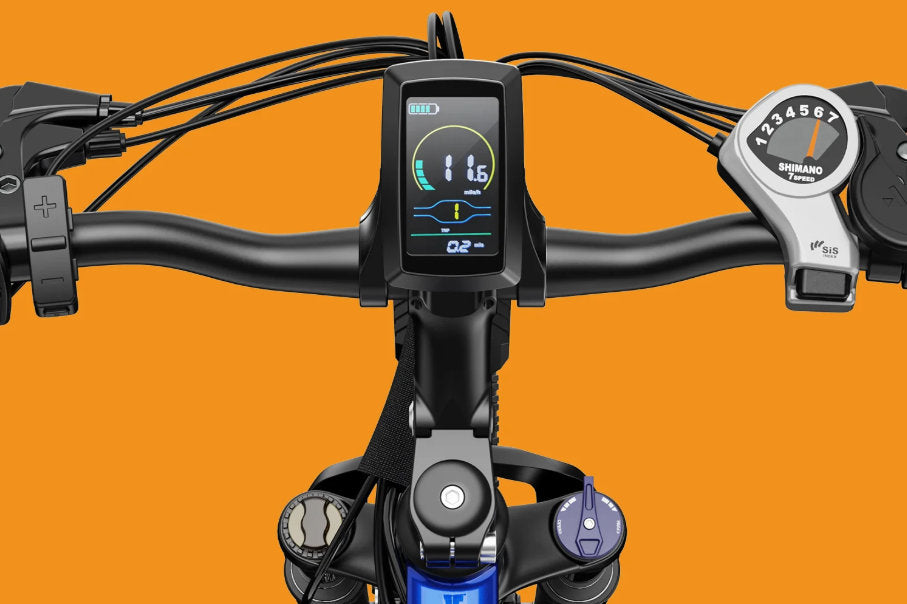
- Power on your compatible ebike and keep your phone close to the display.
- Connect the bike in the app, then check the settings available for your model and start your first ride record.
What Is the Jasion Ride App?
The Jasion Ride App puts compatible ebike controls and ride insights on your phone. It currently supports Hunter Pro, Thunder Pro, Thunder Pro ST, and Thunder. Depending on your model, you may be able to customize settings, tune performance, record trips, and join the Jasion community.

Step 1: How to Download the Jasion Ride App
If you own a compatible model, open your app store on Android or iOS and search for “Jasion Ride”. Download the app for free.
Android Download: Jasionbike Ride Application
iOS Download: Jasionbike Ride Application
Tip: Use the same email you used for your ebike order. It can make support and order verification easier if you ever need help.
Step 2: Create Your Account and Prepare Your Phone
- Sign up with your email address and finish verification (if prompted).
- Enable Bluetooth on your phone.
- Allow permissions the app requests (Bluetooth / Nearby devices, and sometimes Location on Android).
Why permissions matter: On many phones, Bluetooth scanning requires permission approval—especially on newer Android versions.
Step 3: Connect a Compatible Jasion Ebike to the App (Bluetooth Pairing)
Before pairing, confirm that your bike is a Hunter Pro, Thunder Pro, Thunder Pro ST, or Thunder. Models that do not support the Jasion Ride App will not appear in the app’s Bluetooth device list.
If your model is supported, follow these steps:
- Turn on your ebike and keep it nearby (within 1–3 meters / 3–10 ft).
- Open the Jasion Ride App and go to the bike connection/linking section.
- Scan and select your bike when it appears.
- Confirm the connection in the app. If it asks you to reboot the display, do so once and retry.
If you don’t see your bike: first verify the exact model name. If it is one of the supported models listed above, jump to the FAQ section below for connection troubleshooting.
Step 4: Set Up Your Bike Settings (Recommended for New Users)
Once a supported bike is connected, start with simple settings first. The exact options shown in the app may vary by model.
Check Your Bike Settings

- LCD Backlight: Default is Light. You can change it to Dark or Normal.
-
Personalization Setting:
- On: App settings overwrite your bike’s LCD display settings. Reboot the display to apply changes.
- Off: Your LCD display settings take priority and can overwrite app settings.
- Trip Distance Reset: Resets the current trip mileage (total mileage / ODO won’t be cleared).
- Default Settings: Available only after the bike is linked. Restores bike and display settings to factory defaults.
Step 5: Start Your First Trip Record
Depending on your model and the functions available in the app, you may be able to view key data such as trip distance, ride time, and battery level. After each ride, you may also be able to review stats like average speed and save or share a trip summary.

Optional: Tune Performance Settings (Model Dependent)
The Jasion Ride App may provide performance options such as speed units, top speed caps, throttle limiter, and PAS settings.
Note: Only Hunter Pro, Thunder Pro, Thunder Pro ST, and Thunder currently support app connectivity. Even among these compatible models, not every bike supports every feature listed below.

- Speed Unit: Default is mph. You can switch to km/h.
- User Top Speed: Set a maximum speed cap for both throttle and PAS so riding stays within your preferred limit.
-
Throttle Speed Limiter:
- Off: You may reach top speed with throttle-only mode.
- On: Throttle-only speed is limited to match PAS top speed.
- PAS Level: Typically 0–5. At Level 0, the bike rides like a normal bike without assist.
- PAS Level Speed Limiter: Set max speed per PAS level (except Level 0). Lower levels can’t exceed higher levels, and the highest level can’t exceed User Top Speed.
- PAS Sensitivity: Often ranges from High (0) to Low (3). Higher sensitivity feels more responsive; lower sensitivity feels smoother.
Community: Medals and Rankings
Mileage Medals are awarded based on total distance (for example, 5 km, 50 km, and 100 km). Activity Medals are based on app usage and active days, independent of ride data.
Rankings are usually grouped into weekly, monthly, and total mileage. You can view your own ranking and see top riders in each category.

Prefer a video walkthrough?
If you’d rather follow along on-screen, watch the video below. It walks through the same steps in this guide: app download, account setup, Bluetooth pairing, key settings, and how to start recording rides. The video applies to compatible Jasion models, but the screens and available functions may vary by model. After watching, come back here to use the FAQ if anything doesn’t work the first time.
Firmware Updates (OTA Upgrades)
Some supported models may receive firmware updates through the app. If you see an upgrade prompt for your bike, follow the on-screen steps to complete the update. Firmware update availability may vary by model.

FAQ: Common Setup Issues (Fast Fixes)
Which Jasion ebike models support the Jasion Ride App?
The Jasion Ride App currently supports Hunter Pro, Thunder Pro, Thunder Pro ST, and Thunder. Other Jasion models may not support app connectivity. If your model is not listed, check your product information or contact Jasion Customer Support before attempting to pair it.
I can’t find my bike in the app. What should I do?
First, confirm that your ebike is a Hunter Pro, Thunder Pro, Thunder Pro ST, or Thunder. Other models may not appear during Bluetooth scanning because they do not support app connectivity.
If you have a supported model, make sure the ebike is powered on and your phone is within 1–3 meters (3–10 ft). Turn Bluetooth off and on, then reopen the app. Approve Bluetooth/Nearby devices permissions (and Location on some Android phones). Restart your phone and reboot the bike display once, then try again.
The app connects, but my settings don’t take effect.
First, confirm that the setting is supported by your specific model. Then check Personalization Setting. If it’s Off, the bike’s LCD settings may override the app. After changing settings, reboot the display if prompted.
Do all supported models have the same app features?
No. Available settings and functions may vary among Hunter Pro, Thunder Pro, Thunder Pro ST, and Thunder. Features such as performance tuning, personalization, ride information, and firmware updates depend on the specific bike model and display system. If you don’t see a feature in your app, your bike may not support it.
Summary
The Jasion Ride App currently supports Hunter Pro, Thunder Pro, Thunder Pro ST, and Thunder. Owners of these compatible models can use this guide to download the app, create an account, connect their ebike, and start recording rides. Available settings and features may vary by model. If your model is not listed or you are unsure about compatibility, our customer service team is ready to help.






Share:
7 comments
It would have been nice to know that my X-Hunter ST wasn’t supported by the app before I purchased and had it assembled. Is there a possibility that it will be supported in the future?
Will anybody be monitoring email anytime soon, so as people can actually register the app with a code supposedly sent once requested.
LaRay Petersoon ik
Does the app work with the EB5 Roamer? If not, will it be in the future? If not, why not?
What two ebikes does your app support?